Connect ChatGPT or Claude
Cozibud documents two ways to connect an assistant. Signing in is the better one and is what ChatGPT and Claude use. An access key exists for assistants that cannot sign in, and for scripts that run on a schedule with no browser. No other assistant is implied to be supported.
| Signing in | Access key | |
|---|---|---|
| Works with | ChatGPT, Claude | Anything that sends a bearer token |
| You approve | A consent screen naming the assistant | Nothing; the key is the permission |
| Expires | After a set period, then reconnect | Never, until you revoke it |
| Best for | Everyday use | Assistants that cannot sign in, and scheduled scripts |
The server address
Both routes use the same address. Your assistant asks for it as a connector, server or MCP URL. It is also shown under Settings → Connected assistants as Server address, with a copy button.
https://cozibud.com/api/mcp
Before you connect
- Sign in to the Cozibud household you intend to share.
- Review the assistant's identity and requested access on the consent screen.
- Remember that assistant responses can be wrong; review records in Cozibud before relying on them.
- Start the connection from the supported assistant's connector or integration flow, using the server address above.
- Sign in to Cozibud if prompted.
- On the Connect ChatGPT? or Connect Claude? screen, verify the assistant and household, then choose Allow access or Cancel.
- Return to the assistant and test a narrow request, such as asking for the latest recorded bottle.
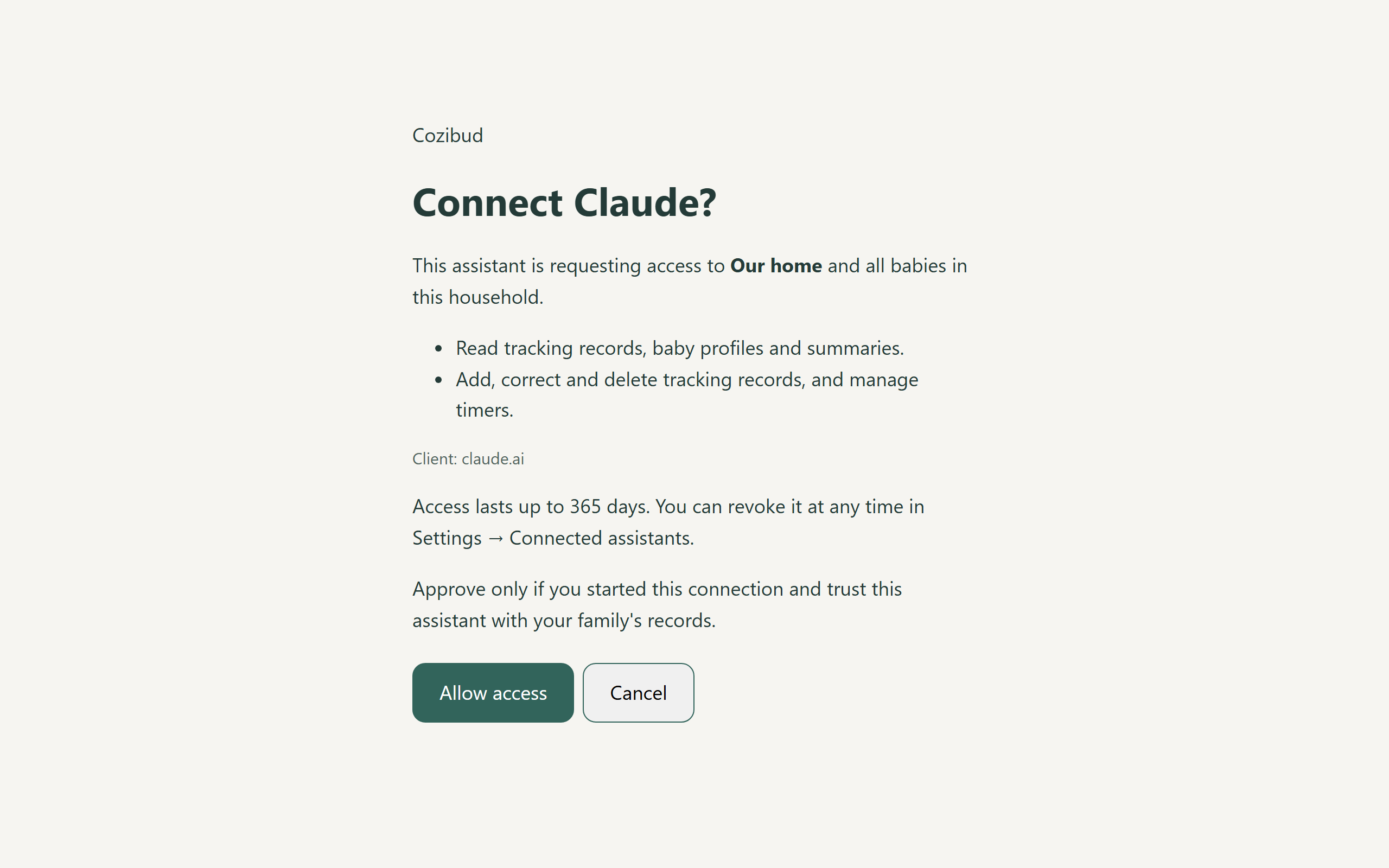
Expected result: the assistant can use only the permissions granted for the selected household.
Referring to a child by name
The assistant can refer to a child by name or by any nickname you have set — for example "log a wet nappy for 小宝" — in whichever language or script you use. Matching ignores case. Nicknames are set in the Cozibud app on the baby's edit screen; if two children share a nickname, the assistant will ask which one you mean.
Connect with an access key instead
Use this only when the assistant cannot sign in. An access key carries no consent screen, names nobody, and does not expire, so treat it like a password.
- The key is shown once. If you lose it, revoke it and create another.
- Choose read-only unless the assistant needs to record care.
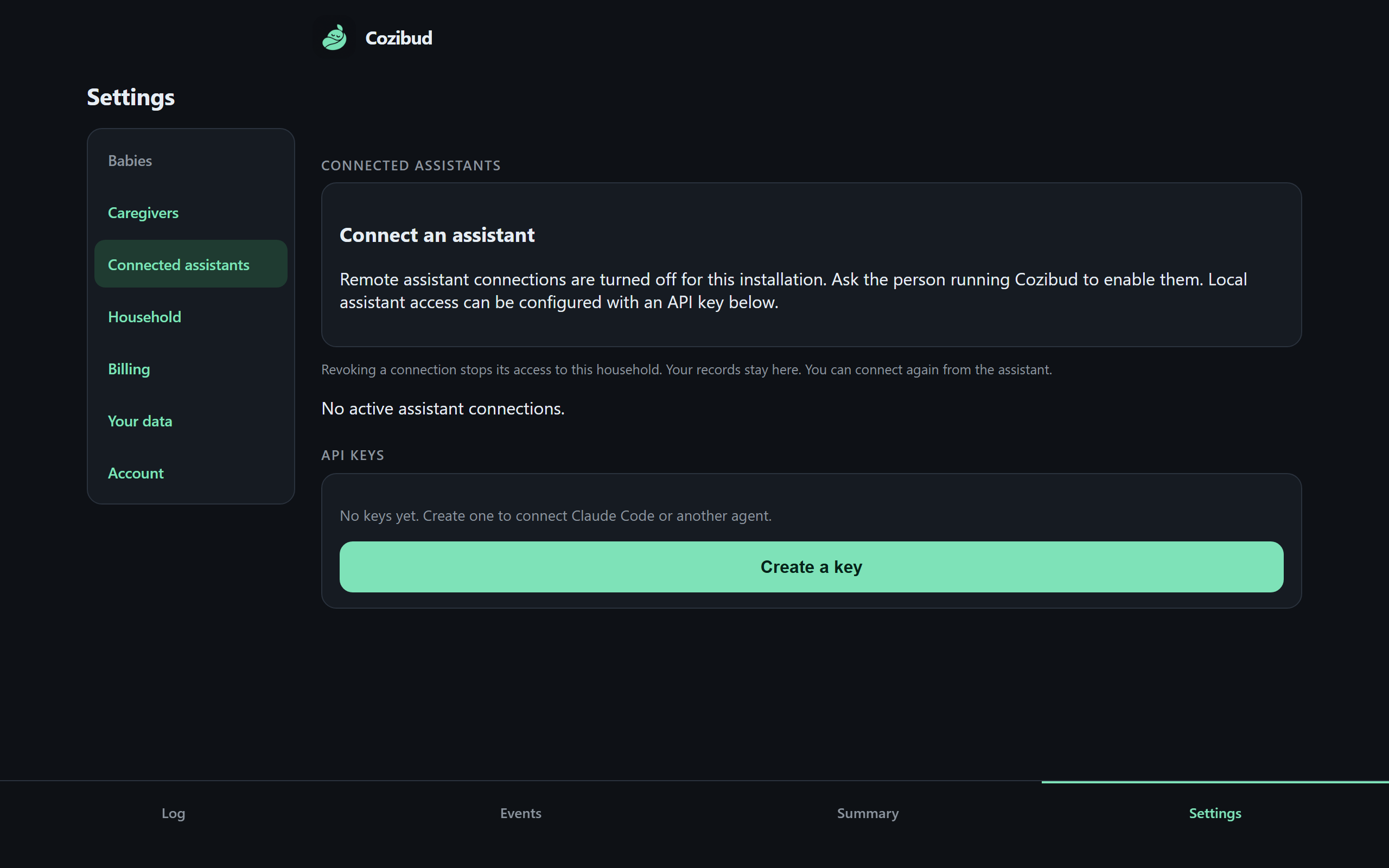
- In Cozibud, open Settings and find API keys. Only a household owner sees this section.
- Create a key, choose its permissions, and copy it immediately.
- In your assistant, use the server address above, and send the key as a bearer token in the
Authorizationheader:
Authorization: Bearer ob_your-key-here
Expected result: the assistant reaches only the household the key belongs to, with the permissions you chose.
To withdraw it, open Settings, find the key by its short prefix under API keys, and choose Revoke. That takes effect immediately, including for a request already in flight.
Revoke access
Open Settings, find the assistant under Connected assistants, and choose Revoke access. Reconnect explicitly if access is needed again. Never paste passwords, verification codes or private connection tokens into chat.